
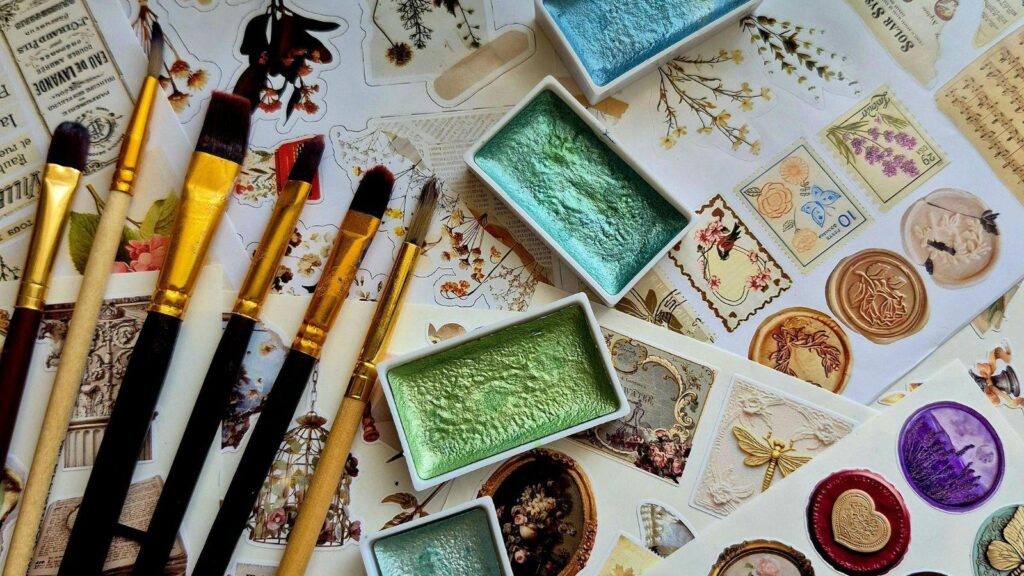
Custom stickers continue to serve as compact brand carriers, event merchandise, packaging enhancements, and creative personal projects. They are relatively low-cost to produce, adaptable to many surfaces, and easy to distribute. As design platforms have evolved, the technical barrier to creating print-ready stickers has dropped significantly.
Modern sticker mockup tools integrate layout design, typography, image editing, and product visualization into a single environment. Instead of switching between separate applications for cropping, sizing, and previewing, users can design and simulate final output within one workspace. This reduces handoff errors and shortens iteration cycles.
One accessible example is Adobe Express’ custom sticker maker, which combines templates, background removal, and print-friendly export presets in a browser-based workflow. It provides a structured starting point for beginners while still allowing customization depth for more experienced users.
The steps below outline a complete, tool-agnostic workflow, with Adobe Express used as the primary example and additional non-design tools referenced where appropriate.
Step-by-Step Guide for Using Mockup Tool for Stickers
Step 1: Define Purpose, Dimensions, and Constraints
Goal
Establish clear design boundaries before building the sticker.
How to do it
- Identify the sticker’s function (branding, packaging insert, event handout, resale product).
- Choose shape: circular, rectangular, square, or die-cut.
- Confirm physical size in inches or millimeters.
- Determine surface application (paper box, metal bottle, laptop, outdoor surface).
- Start a correctly sized template inside Adobe Express to avoid scaling later.
What to watch for
- Designing without fixed dimensions can cause pixelation or resizing artifacts.
- Outdoor stickers may require simplified shapes for durability.
- Complex die-cut outlines require adequate edge margins.
Tool notes
If you need to document size specifications and material requirements for a printer, a project management tool such as Asana can help organize technical constraints, deadlines, and vendor communication without relying on additional design software.
Step 2: Build or Import the Core Graphic
Goal
Create a visually strong focal element.
How to do it
- Upload a logo, illustration, or photograph.
- Remove background if needed.
- Increase contrast for small-format clarity.
- Crop tightly to emphasize subject.
- Use vector-friendly formats when available.
What to watch for
- Raster images may lose quality if enlarged.
- Fine detail may not reproduce well on small stickers.
- Shadows and gradients can print darker than expected.
Tool notes
If the artwork originates from a collaborative team, a cloud storage platform such as Dropbox can help maintain version control and prevent outdated file exports from entering the print workflow.
Step 3: Add Typography With Print in Mind
Goal
Ensure text remains readable and balanced at final size.
How to do it
- Choose a maximum of two font families.
- Increase letter spacing slightly for small print.
- Convert key text to bold for visibility.
- Keep essential wording above 8pt equivalent when printed.
- Align text relative to the sticker’s visual center.
What to watch for
- Thin fonts may disappear in small formats.
- Script fonts can reduce legibility.
- Overcrowding reduces clarity when viewed at arm’s length.
Tool notes
If brand typography guidelines are stored in internal documentation, a knowledge management tool such as Notion can centralize font rules and usage notes so design decisions remain consistent.
Step 4: Preview the Sticker in Real-World Context
Goal
Visualize how the sticker appears on surfaces before final export.
How to do it
- Use the mockup preview function inside your sticker tool.
- Simulate placement on laptops, packaging, or bottles.
- Zoom out to test visibility at realistic viewing distance.
- Compare light and dark surface backgrounds.
- Evaluate edge contrast against surfaces.
What to watch for
- Light designs may disappear on white packaging.
- Busy backgrounds reduce logo impact.
- Gloss finishes amplify color saturation.
Tool notes
If testing sticker placement for ecommerce listing previews, an online store builder such as Shopify can host draft product listings with mockups to evaluate presentation clarity before production.
Step 5: Prepare for Print-Ready Export
Goal
Ensure technical compliance for professional printing.
How to do it
- Set resolution to at least 300 DPI.
- Confirm color mode requirements (RGB vs CMYK, depending on printer).
- Maintain safe margins inside cut lines.
- Export a transparent PNG for die-cut or a PDF for sheet printing.
- Verify bleed requirements if specified.
What to watch for
- Missing bleed can cause white borders.
- RGB exports may shift color when converted to CMYK.
- Transparent backgrounds must remain intact.
Tool notes
If coordinating with a shipping provider for distribution after printing, a logistics company such as ShipStation can help organize fulfillment workflows without modifying the design file itself.
Step 6: Review Before Production or Publication
Goal
Catch preventable errors before committing to print or sale.
How to do it
- Proofread all text.
- Zoom to 100% scale to inspect edges.
- Print a small test version at home if possible.
- Confirm final dimensions once more.
- Re-check export file format and background transparency.
What to watch for
- Spelling errors often appear after visual tweaks.
- Cropping may remove intended margin.
- Shadows or outlines may extend beyond cut lines.
Tool notes
If managing review cycles with stakeholders, a communication platform such as Slack can centralize approvals and reduce email version confusion.
Common Workflow Variations
Photo-Based Sticker Design
When using photography, background removal becomes critical. High-contrast subject edges help prevent jagged cut lines. Mockups should test both matte and gloss finishes to assess detail retention.
Minimal Logo Sticker
For brand-only designs, focus on negative space and contrast. Ensure the logo works at small sizes and test visibility on both dark and light surfaces.
Small-Batch Ecommerce Sale
If planning resale, test multiple size variations. Simulate product thumbnails and consider packaging inserts to reinforce branding consistency.
Event or Conference Giveaway
Prioritize bold colors and large typography. Design for quick visual recognition rather than fine detail.
Before You Start Checklist
- ☐ Resolution at 300 DPI or higher
- ☐ Correct file format (PNG or PDF as required)
- ☐ Transparent background verified (if die-cut)
- ☐ Safe margin maintained inside cut line
- ☐ Text proofread
- ☐ Colors reviewed on calibrated display
- ☐ Dimensions double-checked
- ☐ Test print examined (if available)
Pre-Export / Pre-Order Checklist
- ☐ Resolution at 300 DPI or higher
- ☐ Correct file format (PNG or PDF as required)
- ☐ Transparent background verified (if die-cut)
- ☐ Safe margin maintained inside cut line
- ☐ Text proofread
- ☐ Colors reviewed on calibrated display
- ☐ Dimensions double-checked
- ☐ Test print examined (if available)
Common Issues and Fixes
Low-Resolution Artwork
Fix by replacing the image with a higher-resolution source or converting to vector format. Avoid enlarging small raster images.
Text Too Close to Edges
Increase inner margins and verify cut lines. Maintain a buffer to avoid trimming letters.
Unexpected Color Shifts
Confirm printer color mode requirements. If necessary, convert to CMYK before export and adjust saturation.
Design Looks Different on Product Surface
Test mockups on both light and dark backgrounds. Increase contrast or add outlines to improve visibility.
Cropping Errors After Export
Recheck canvas size and export settings. Ensure no extra bounding boxes alter the file dimensions.
How To Use Mockup Tool for Stickers: FAQs
Should I start with a template or a blank canvas?
Templates reduce setup time and enforce correct dimensions. Blank canvases provide flexibility but require manual sizing discipline.
What file format is best for printing stickers?
Transparent PNG works well for die-cut shapes. Print-ready PDF is typically preferred for sheet printing or large runs.
How do I decide between matte and gloss finishes?
Gloss enhances color saturation and shine, while matte reduces glare and offers a softer look. Mockup previews help simulate differences.
Is a mockup tool enough for professional-quality stickers?
For many small to mid-scale projects, integrated platforms provide sufficient functionality. For complex vector illustration or specialty print effects, files may be refined in advanced workflows before final export.